
Treasure Studio
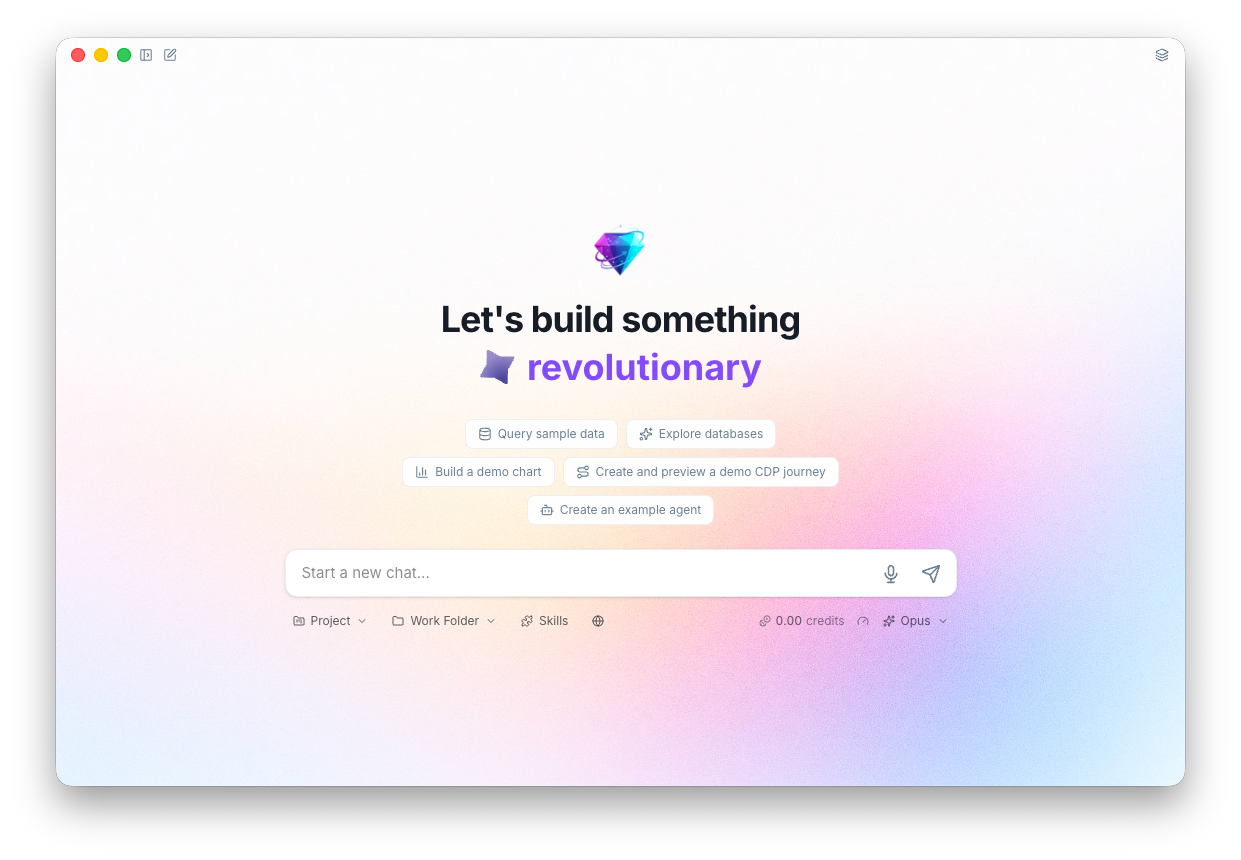
Treasure Studio is a desktop AI application for Treasure Data. Give it a task — analyze revenue trends, build an audience segment, debug a workflow — and step away. Come back to charts rendered, segments defined, queries optimized, and resources ready to deploy for 24/7 marketing optimization.
Ready to try it? Install Treasure Studio to get started.
What You Can Do
Query your data without writing SQL. Describe what you want in plain English. Studio writes the query, runs it against your account, and renders results as interactive charts and tables.
Build CDP resources through conversation. "Create a segment of users who purchased in the last 30 days but haven't opened an email in 90." Studio creates the segment definition, validates it, and pushes it to your account. Same for journeys, activations, and workflows.
Power through tedious tasks. Audit all segments in a folder, compare journey performance across variants, generate a weekly report from scratch — the kind of work that takes hours of clicking through the console.
Stay in control. Watch every step in real time — queries executing, APIs called, files written. Expand the AI's thinking to see its reasoning. Everything is transparent and reviewable.
Connections
Studio's AI becomes more useful when it can reach beyond Treasure Data. Connect Google Calendar, Gmail, HubSpot, Atlassian, Glean, and more — all available to the AI within the same conversation. Need something custom? Add any MCP server to give the AI access to your team's internal tools and APIs.
See Connections for setup instructions and the full list of supported services.
Chat
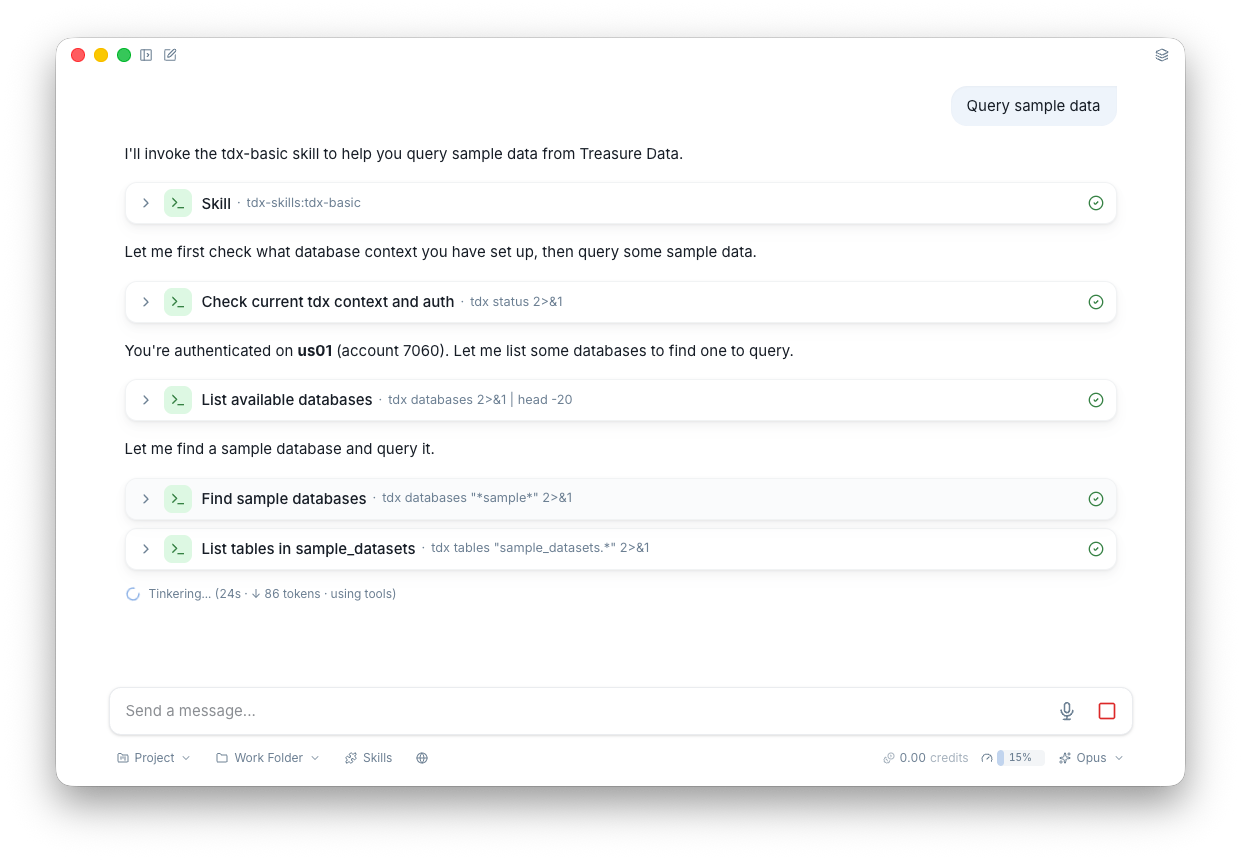
The chat interface is where everything happens. Ask a question, give an instruction, or describe what you want — Studio streams the AI's response in real time so you can see it think and act.
What makes it powerful:
- Extended thinking — Expand the thinking panel to see the AI's reasoning before it responds. Useful for understanding complex analysis or debugging unexpected results.
- Tool calls in real time — Watch the AI execute queries, read files, and call APIs as it works. Every tool call is visible and expandable.
- Voice input — Dictate your messages instead of typing.
- Auto-compact — Long conversations don't hit a wall. When the context window fills up, Studio automatically summarizes earlier messages so the conversation continues seamlessly.
Artifacts
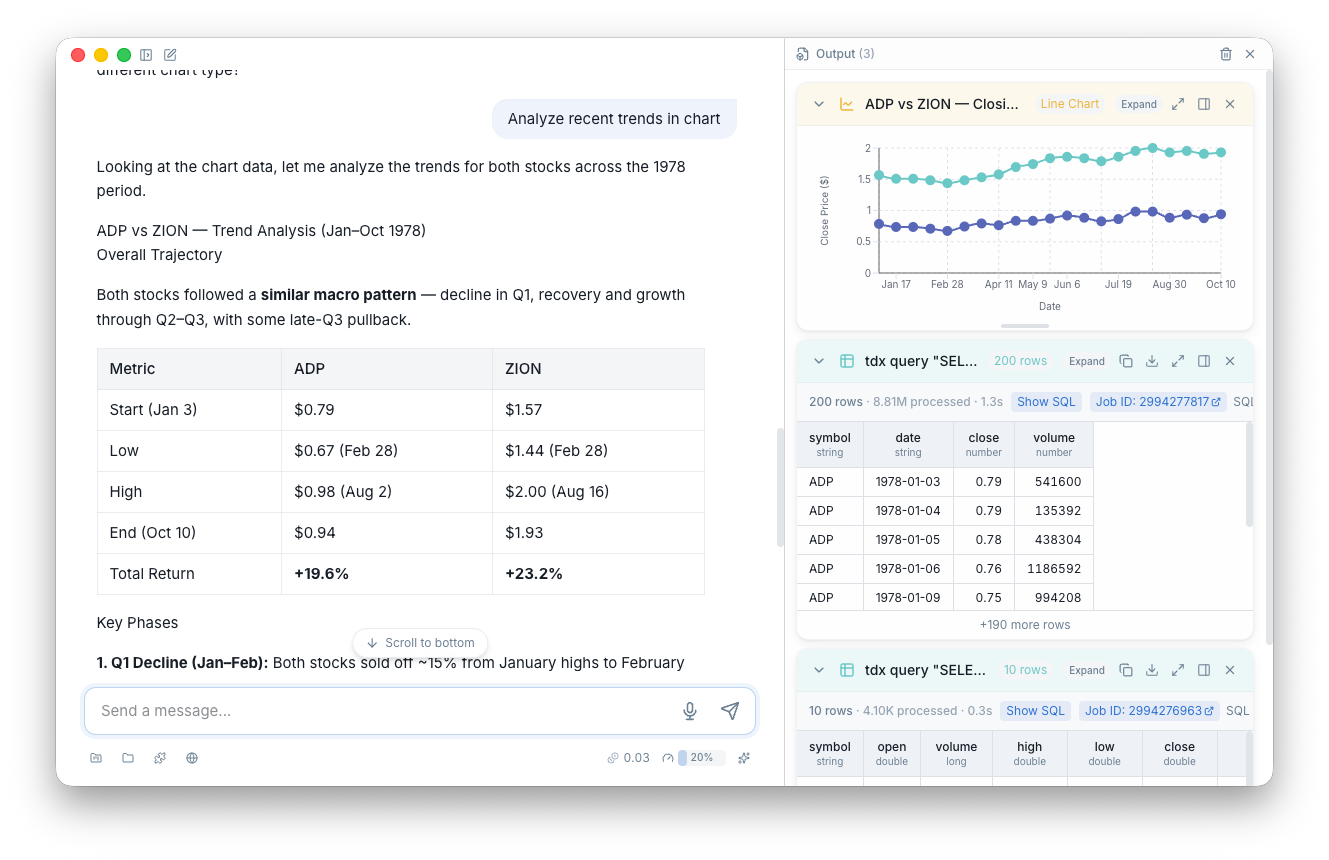
When the AI generates something visual — a chart, a table, a code file, a document — it appears in the artifact panel alongside the chat.
| Type | Example |
|---|---|
| Chart | Revenue trends, segment overlap visualizations, funnel analysis |
| Table | Query results, user lists, segment previews |
| Code | SQL queries, YAML configs, workflow definitions |
| Document | Analysis reports, documentation drafts |
Artifacts are interactive. You can sort tables, zoom into charts, copy code blocks, and export anything to a file.
Marketing Preview
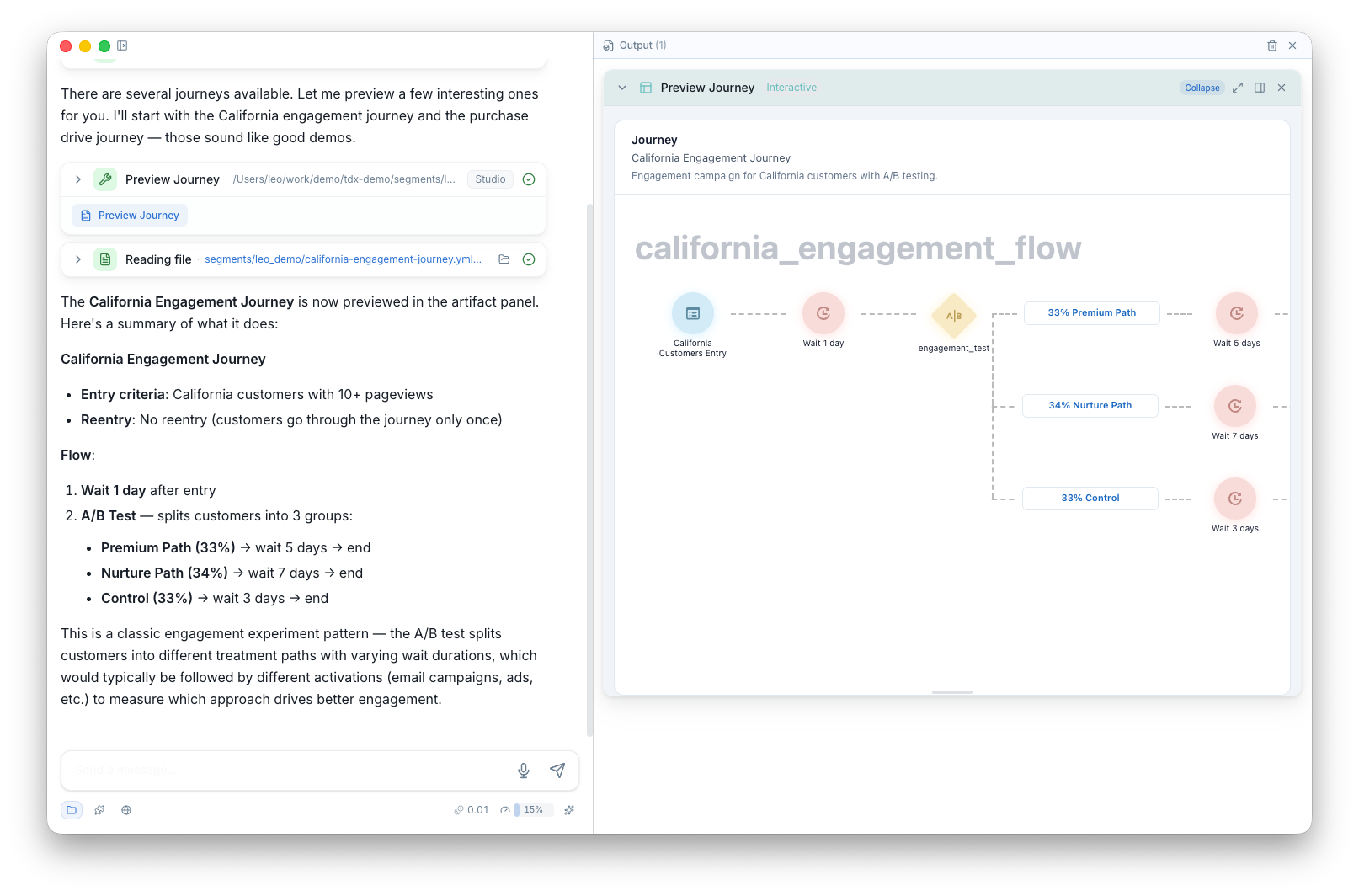
Studio can render visual previews of your CDP resources directly in the artifact panel. When you build or review a journey, segment, or workflow, Studio generates an interactive diagram showing the full structure — entry criteria, decision points, segment rules, activation steps — so you can verify the logic before pushing to your account.
Ask the AI to modify a step and the preview updates in real time.
Projects
Every time you start a new analysis or workflow, you end up re-explaining context: which database, which segment, what coding conventions to follow. Projects eliminate that.
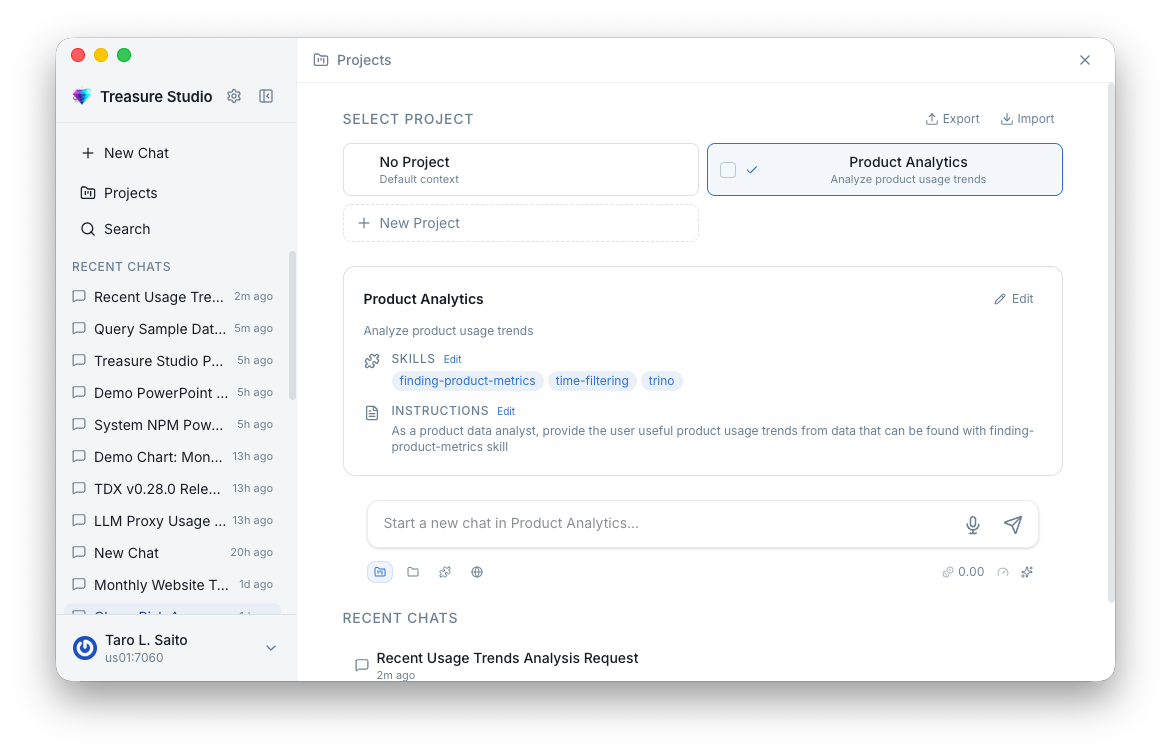
A project is a saved workspace that pre-loads context into every new chat:
- Instructions — "Always use the
marketingdatabase. Format SQL with CTEs." Custom rules the AI follows automatically. - Working folder — A directory on your machine where the AI reads and writes files (YAML configs, exports, query results).
- Skills — Pre-activate specific skills so they're always available. A "CDP Management" project might always have segment and journey skills enabled. Skills give you full customizability of your AI partner — from SQL optimization to workflow management.
- TD context — Pin a default database, table, or segment so you don't have to specify it every time.
Switching Projects
Use Cmd+P or type @project: in the chat input or command palette to switch projects. Each project keeps its own configuration, so you can jump between "Analytics" and "CDP Ops" without reconfiguring anything.
Slash Commands
Type / in the chat to invoke a skill directly. An autocomplete dropdown shows available skills — select one and it runs with your message as input.
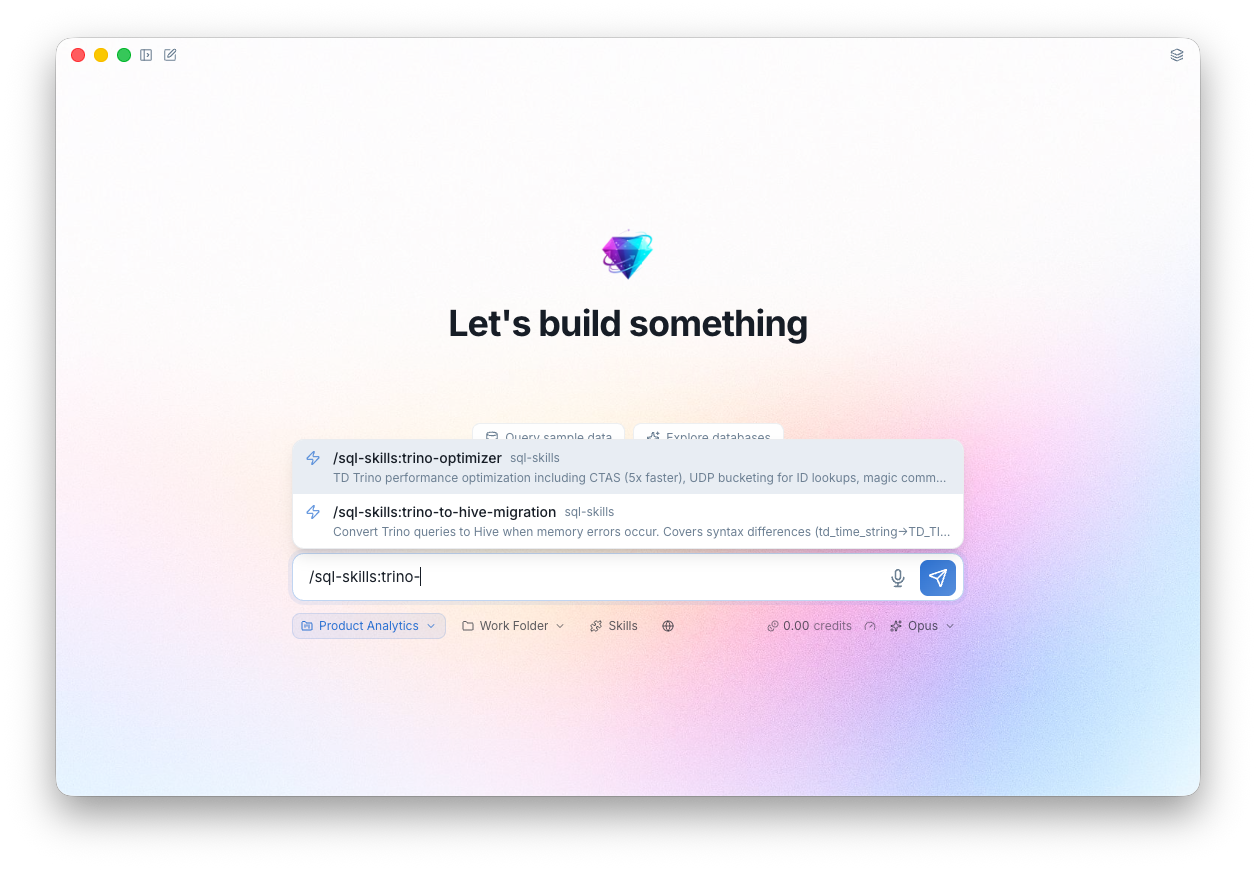
For example, /sql-skills:trino-optimizer followed by a query will analyze it for performance issues and suggest improvements. See Skills for the full list of available skills.
Bang Commands
Type ! to run any tdx CLI command or MCP tool directly from the chat. The output appears inline.
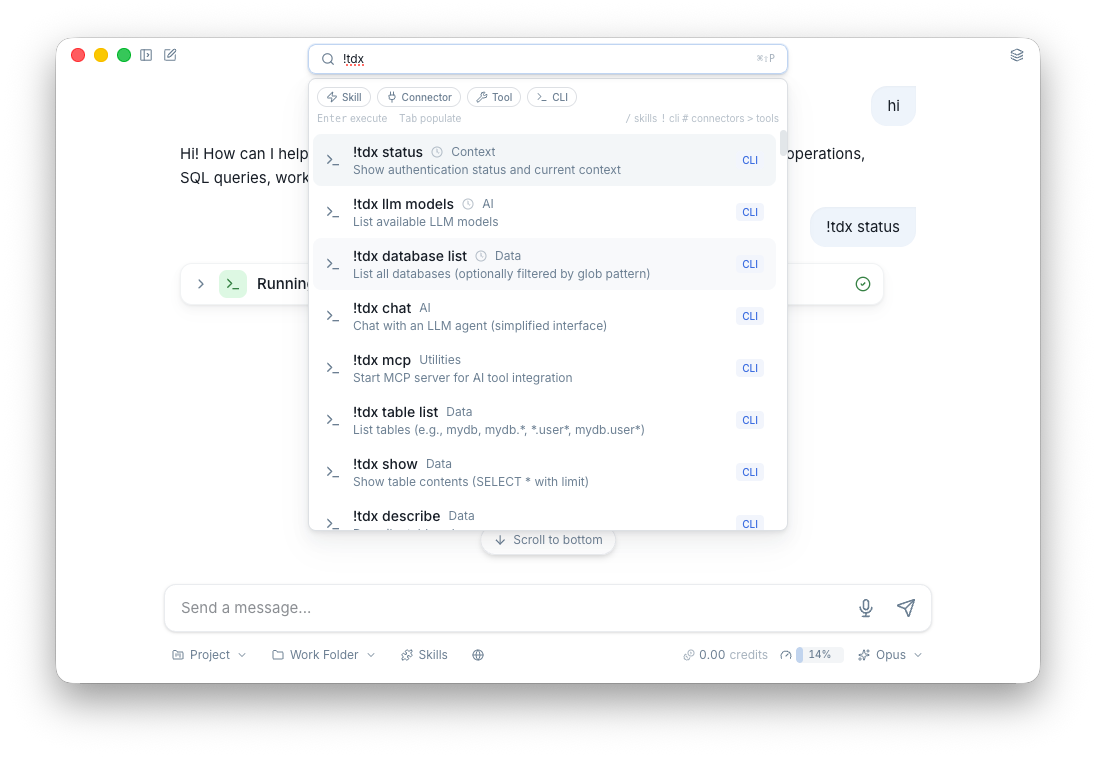
!tdx databases
!tdx query "SELECT count(*) FROM mydb.users"
!tdx segment list
This is useful when you want quick, direct access to CLI functionality without going through the AI.
Keyboard Shortcuts
Learning a few shortcuts makes Studio feel effortless. Start with these two:
Cmd+Shift+P— Open the command palette. This is your entry point to everything — switch projects, start a new chat, change settings, or run any action. If you remember one shortcut, make it this one.Cmd+P— Switch project instantly. If you set up projects for your common tasks (e.g. "Analytics", "CDP Ops"), this lets you jump between them without breaking your flow.
From there, the rest speeds up your daily workflow:
| Shortcut | Action |
|---|---|
Cmd+N / Ctrl+N | New chat |
Cmd+P / Ctrl+P | Switch project |
Cmd+Shift+P / Ctrl+Shift+P | Command palette |
Cmd+O / Ctrl+O | Search chats |
Cmd+\ / Ctrl+\ | Toggle sidebar |
Cmd+, / Ctrl+, | Settings |
Cmd++ / Ctrl++ | Zoom in |
Cmd+- / Ctrl+- | Zoom out |
Cmd+0 / Ctrl+0 | Reset zoom |
Chat Search
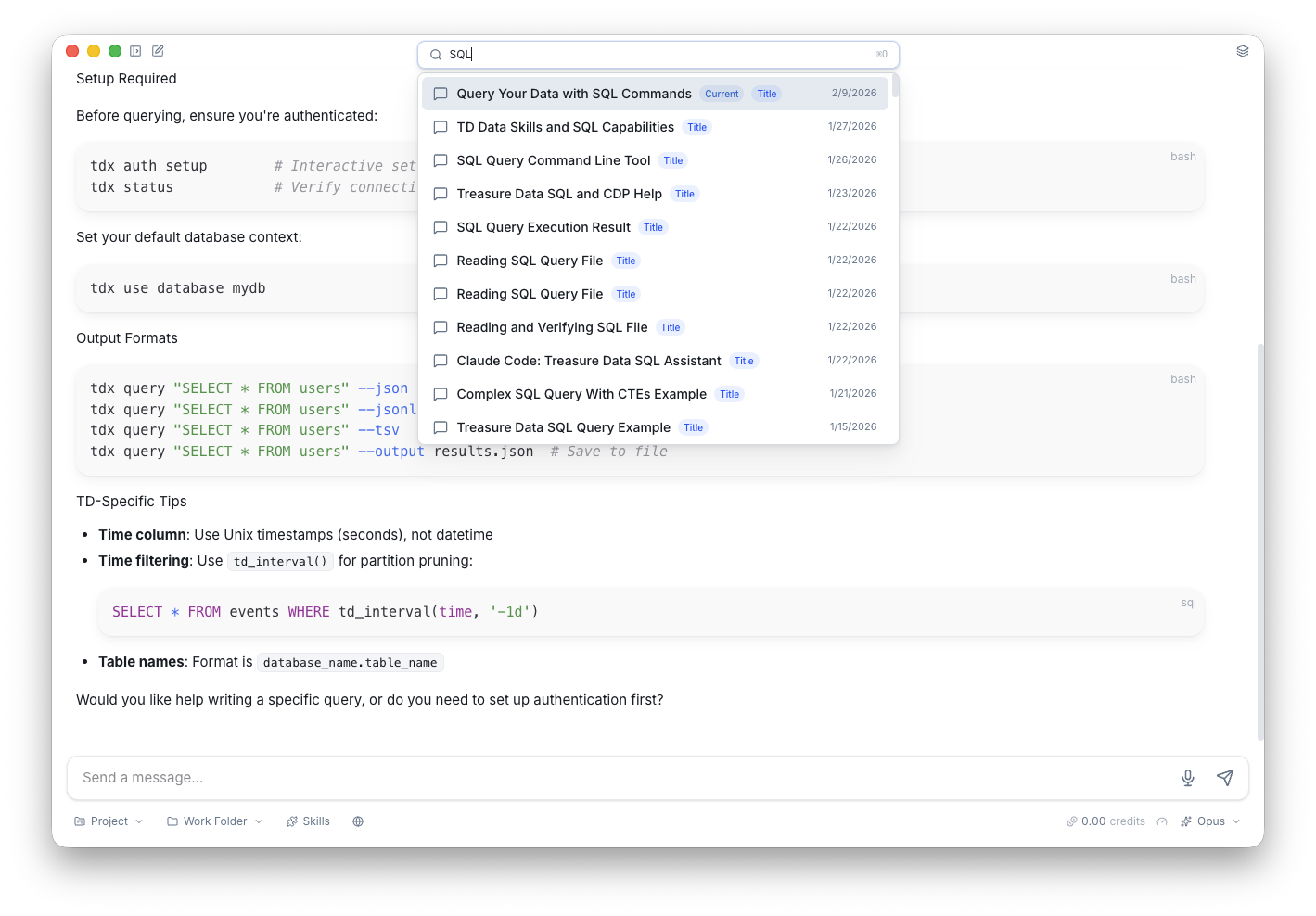
Use Cmd+O to search across all your past conversations. You can clip important messages for quick reference later.
Settings
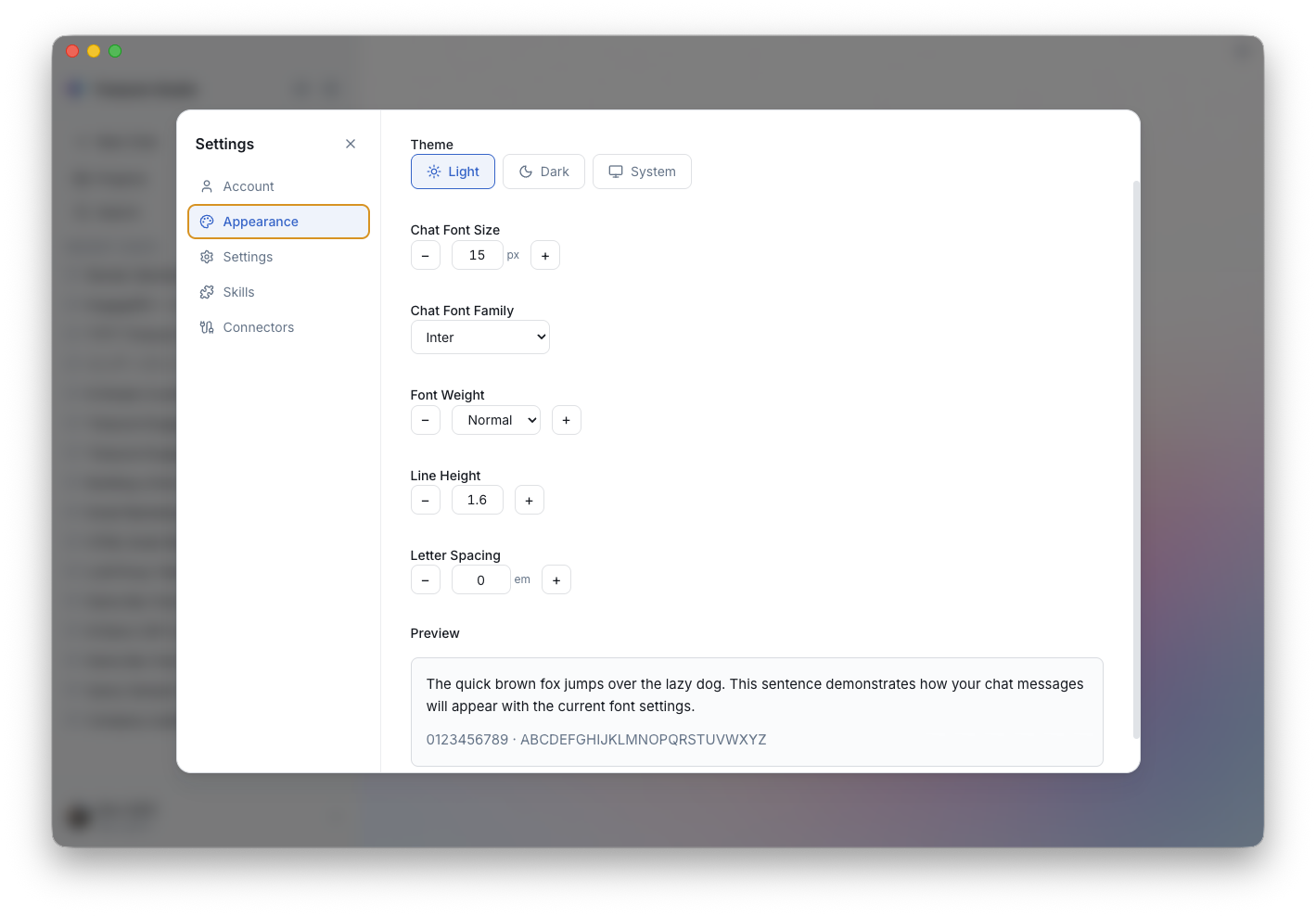
- Theme — Light, dark, or match your system
- Font size — Adjust to your preference
- Working folder — Set the default directory for file operations
- Accounts — Add and switch between multiple TD accounts and regions
Built on tdx
Studio and the tdx CLI share the same SDK and business logic. Every tdx command works inside Studio — type !tdx databases or !tdx segment list and the output appears inline. Skills written for Claude Code work in Studio too.
Get Started
- Install Treasure Studio — download, set up your API key, and you're ready
- Set Up Connections — connect Google, HubSpot, Atlassian, and custom MCP servers
- Browse Skills — install pre-built skills for SQL, segments, workflows, and more
- Understand Concepts — learn how projects, models, and credits work together