
Installation
Get Treasure Studio running in under five minutes.
Download
Supported Platforms
| Platform | Architecture | Status |
|---|---|---|
| macOS | Apple Silicon (arm64) | Available |
| Windows | x64 | Available |
| Windows | arm64 | Available |
Intel Mac Not Supported
Studio requires Apple Silicon (M1 or later). Intel-based Macs are not supported as Apple is deprecating them in 2026.
Early Access Disclaimer
Early Access Software — Please Read Before Downloading
This software is Early Access. Please read carefully before downloading or using.
AI Credit Consumption. Use of the software consumes AI Credits, which carry real monetary value. You are solely responsible for monitoring and managing your AI Credit usage.
Acceptable Use. Your use of the software must comply with the AI Acceptable Use Policy.
AI-Generated Output. The software uses artificial intelligence to generate outputs, including but not limited to queries, configurations, and recommendations ("Outputs"). Outputs may be incorrect, incomplete, or unsuitable for your specific environment. All Outputs should be reviewed and validated by a qualified professional before being applied or used.
Security Responsibility. You are responsible for securing your environment, credentials, API keys, and data pipelines before and during use. Treasure AI strongly recommends the following security practices:
- (a) Run the software in a sandboxed or non-production environment during initial evaluation.
- (b) Use least-privilege access controls for any credentials, API keys, or service accounts connected to the software. Do not grant the software administrative or root-level access to your data infrastructure.
- (c) Rotate any credentials or API keys used during the Early Access period upon conclusion of your evaluation or if you suspect unauthorized access.
- (d) Enable audit logging for any systems accessed by the software and periodically review activity logs for anomalous behavior.
- (e) Do not embed secrets, passwords, or access tokens directly into prompts, queries, or configurations submitted to the software.
Security Testing Restrictions. You may not perform penetration testing, vulnerability scanning, or other security assessments of the software or its infrastructure without Treasure AI's prior written consent. To report a security vulnerability, please contact security@treasure.ai.
Warranties and Liability. THE SOFTWARE IS PROVIDED AS IS. TREASURE DATA DISCLAIMS ALL WARRANTIES, WHETHER EXPRESS OR IMPLIED, STATUTORY OR OTHERWISE. THE SOFTWARE IS NOT ERROR FREE. USE OF THE SOFTWARE MAY PRODUCE OUTPUT THAT IS UNEXPECTED OR UNSUITABLE FOR SOME USES. WITHOUT LIMITATIONS TO THE FOREGOING, TREASURE DATA MAKES NO WARRANTY OR GUARANTEE AS TO THE ACCURACY, COMPLETENESS, FITNESS FOR PURPOSE OR RELIABILITY OF OUTPUT AND SHALL NOT BE LIABLE OR RESPONSIBLE FOR YOUR USE OF OUTPUT OR ANY OMISSIONS OR ERRORS IN THE OUTPUT. FURTHERMORE, TREASURE DATA SHALL HAVE NO LIABILITY TO YOU RESULTING FROM YOUR USE OF THE SOFTWARE.
Install on macOS
Prerequisites
Studio uses git to install and update skills. On macOS, git is provided by Xcode Command Line Tools. If you don't have them installed, open Terminal and run:
xcode-select --installSteps
- Download the latest
.dmgfrom above or the GitHub Releases page - Open the
.dmgand drag Treasure Studio to Applications - Launch from Applications
Install on Windows
Setup Installer (recommended)
- Download the Setup
.exefor your architecture (x64 or arm64) - Run the installer — it will add Treasure Studio to your Start Menu
- Launch from Start Menu
The Setup installer supports automatic updates.
Portable
- Download the Portable
.exefor your architecture - Run the
.exedirectly — no installation required
The portable version does not auto-update. Download a new version manually when needed.
First Launch
On first launch, a setup wizard connects Studio to your Treasure AI account:
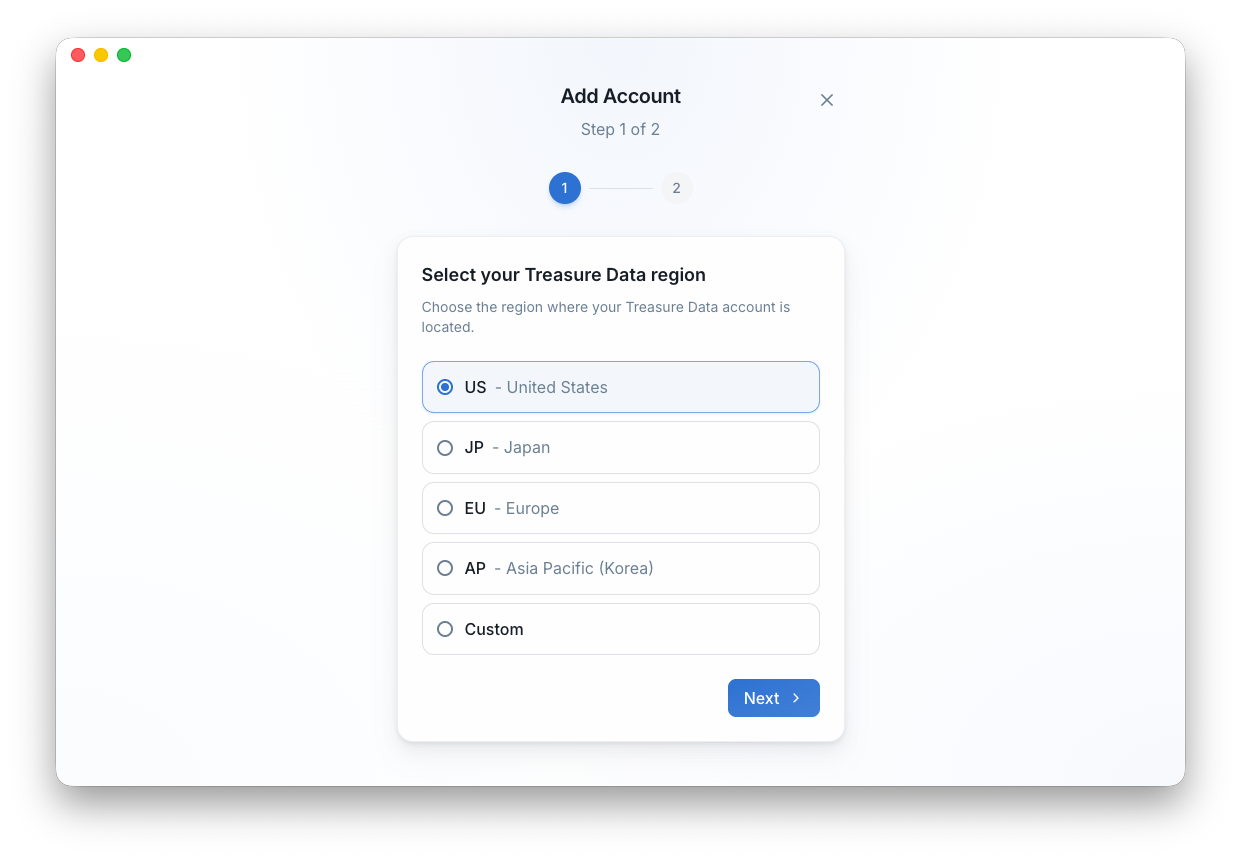
- Region — Select where your account lives (US, JP, EU, or AP)
- API Key — Paste your TD API key
That's it. Your credentials are stored securely in the OS credential store (macOS Keychain or Windows Credential Manager). Studio is ready to use.
Staying Up to Date
Studio checks for updates every time it launches. When a new version is available, it downloads silently in the background and applies on next restart.
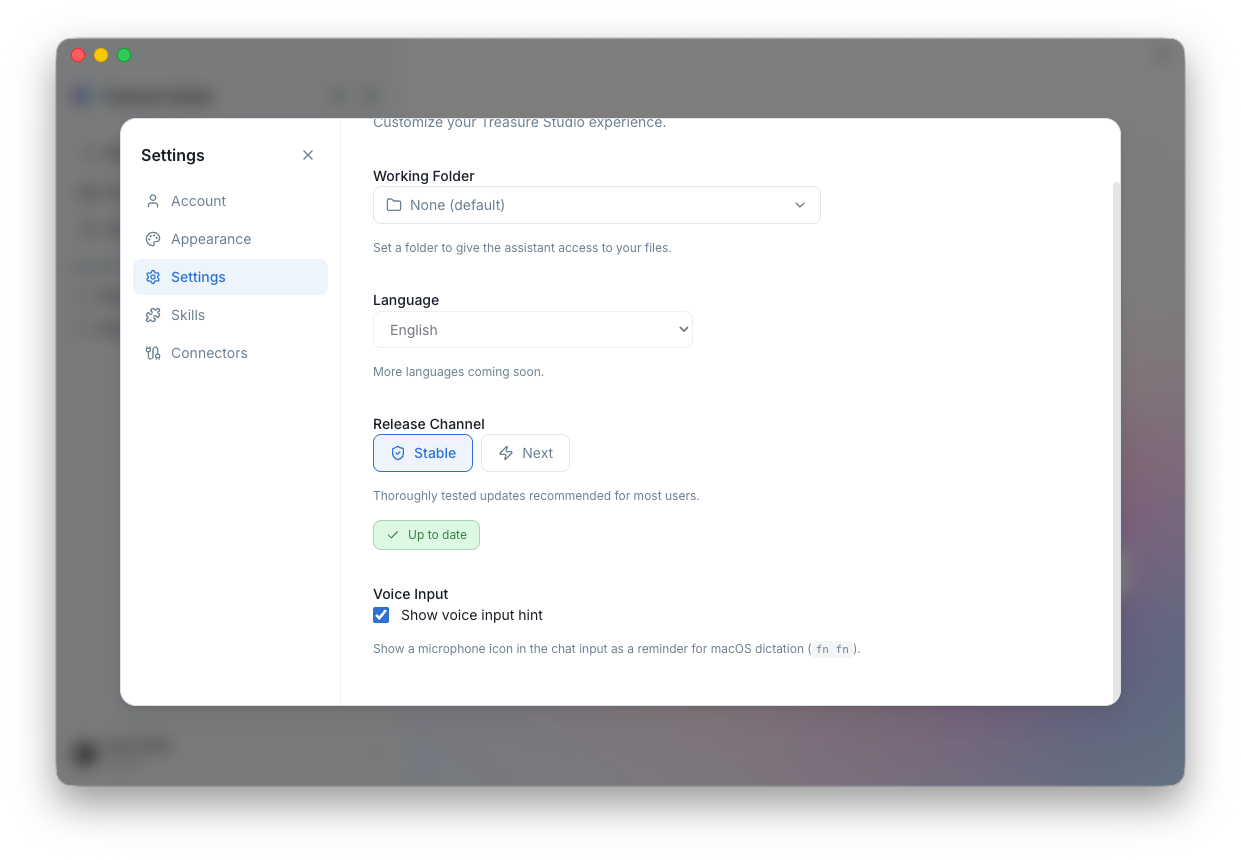
Two release channels are available:
- Stable — Production-ready releases
- Next — Early access to upcoming features
Data Location
Studio stores application data at:
- macOS:
~/Library/Application Support/Treasure Studio/ - Windows:
%APPDATA%\Treasure Studio\
Troubleshooting
API key not accepted
Verify your key and region are correct by running:
tdx statusUpdate stuck
If an auto-update fails, download the latest installer from the download section above and install over the existing version.
Skills not loading (macOS)
If the Skills panel shows an error about git or Xcode Command Line Tools, install them by running:
xcode-select --installRestart Studio after installation completes.
Credential store errors
macOS: Open Keychain Access and ensure the login keychain is unlocked.
Windows: Open Credential Manager (search in Start Menu) and verify that Treasure Studio entries exist under "Generic Credentials".
Next Steps
- Introduction — Learn what you can do with Studio
- Concepts — Understand projects, models, and credits