
Concepts
A few key ideas to help you get the most out of Treasure Studio.
Projects
A project saves your working context so you don't repeat yourself across conversations. Think of it as a preset that loads your preferences, files, and skills every time you start a new chat.
Each project includes:
| Field | What It Does |
|---|---|
| Name & Description | Identify the project in the sidebar and project switcher |
| Working folder | The directory on disk the AI can read and write files to |
| Instructions | Custom rules the AI follows — coding conventions, preferred databases, output formats |
| Skills | Skills that are always active in this project's chats |
| TD context | Default database, table, or segment the AI uses when none is specified |
Example: A "CDP Ops" project might set the working folder to ~/td/cdp-configs/, activate segment and journey skills, and include instructions like "Always validate YAML before pushing."
TIP
Use Cmd+P to switch projects instantly. Your chat history is preserved — switching only changes the configuration for new conversations.
Working Folder
The working folder is the AI's file system sandbox. When the AI generates files — query results, segment definitions, charts, reports — they go here. The AI can also read files from this folder, which is useful for reviewing existing configs or iterating on exports.
Set a working folder per project, or configure a global default in settings.
AI Credits
Each AI interaction consumes credits. The amount depends on which model you use and how much the AI processes (longer conversations and tool-heavy sessions cost more).
| Model | Relative Cost | When to Use |
|---|---|---|
| Opus | Highest | Complex multi-step analysis, building segment rules, writing workflows |
| Sonnet | Medium | General-purpose work, moderate reasoning tasks |
| Haiku | Lowest | Quick lookups, simple questions, conserving budget |
Context Window
The context window is how much conversation the AI can "remember" at once. Studio shows the current usage as a percentage indicator.
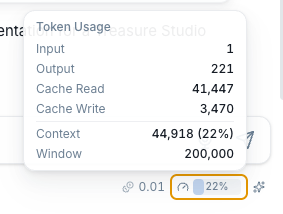
As you chat, the percentage grows. When it gets close to the limit, Studio's auto-compact feature kicks in — it summarizes older messages to free up space without losing important context. Your conversation continues normally.
You can also manage context manually:
/context— See detailed context usage breakdown/compact— Summarize the conversation to free up context space/clear— Clear the context entirely and start fresh
TIP
For best results on long-running work, use projects to carry context across multiple chats rather than pushing a single conversation to its limit.
Model Selection
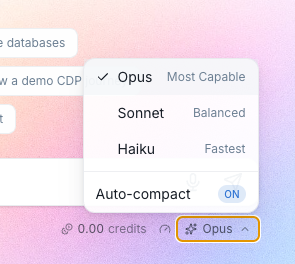
Studio supports multiple Claude models. You can switch models mid-conversation — useful for starting with Haiku for quick exploration, then switching to Opus for the complex part.
| Model | Strengths |
|---|---|
| Opus | Deepest reasoning. Best for multi-step data analysis, complex segment logic, and code generation. |
| Sonnet | Balanced speed and quality. Good default for everyday tasks. |
| Haiku | Fastest and cheapest. Great for quick lookups and simple operations. |
Use the model selector dropdown in the chat to switch at any time.
Next Steps
- Introduction — Explore the full feature set
- Skills — Install agent skills for specialized tasks
- Connections — Connect external services